Appearance
For Providers
Company and catalog
- Select the Provider workspace in the header if your account offers it. Open My companies. Complete required profile details and add a company, or claim the existing listing rather than creating a duplicate. Claims require review.
- Choose the company you manage. Edit its profile, summary, description and other facts in the company editor; save the completed form.
- Add or edit products and solutions with specific capabilities and supporting evidence. Check the active company before making changes.
- Use Confirm my catalog only after reviewing accuracy. Provider confirmation is your attestation, not independent verification. Profile edits may show a review state; check the displayed publication status.
Solutions and drafts
Open Solutions to manage listings and review shortlist demand. AI-drafted solutions remain Draft — not live until you review and approve them. Check every field against the source document, edit what is wrong and dismiss irrelevant drafts. AI drafting does not verify your sustainability claims.
Inquiries and leads
Open Inquiries, select a thread, type your reply and use Send reply. Mark responded, close or reopen as appropriate. Replies are sent in the app; VerityBase does not answer on your behalf.
Shortlist interest can remain anonymous. Use the permitted message action if offered; do not assume an anonymous buyer's identity. Check the company and status filter if an inquiry is missing.
Dashboard and team
The dashboard reports recorded inquiries, catalog counts and profile completeness. Profile and product views may say Not tracked yet: that is not zero views. A load failure is not zero inquiries. The period selector applies to inquiry figures.
Manage company access in Organization in the account menu. Select the company and use its access section to invite colleagues and manage permitted roles. See account settings.
Product use cases
In the company profile's product list, choose Add use case for a product, complete the case and save it. Existing cases appear beneath the product with edit and delete actions. Review the final publication state before assuming buyers can see it.
Job listings
From My Companies, choose the company’s jobs action. Add or edit a job, enter its title and the relevant description, requirements, location and salary settings, then save the changes. Review any jobs marked for deletion before saving.
Visual guide: set up your account
English screen, translated caption. No account was created and no email was sent; signed-in examples use fictional demo data. A displayed form is not proof of completed authentication, verification or membership.
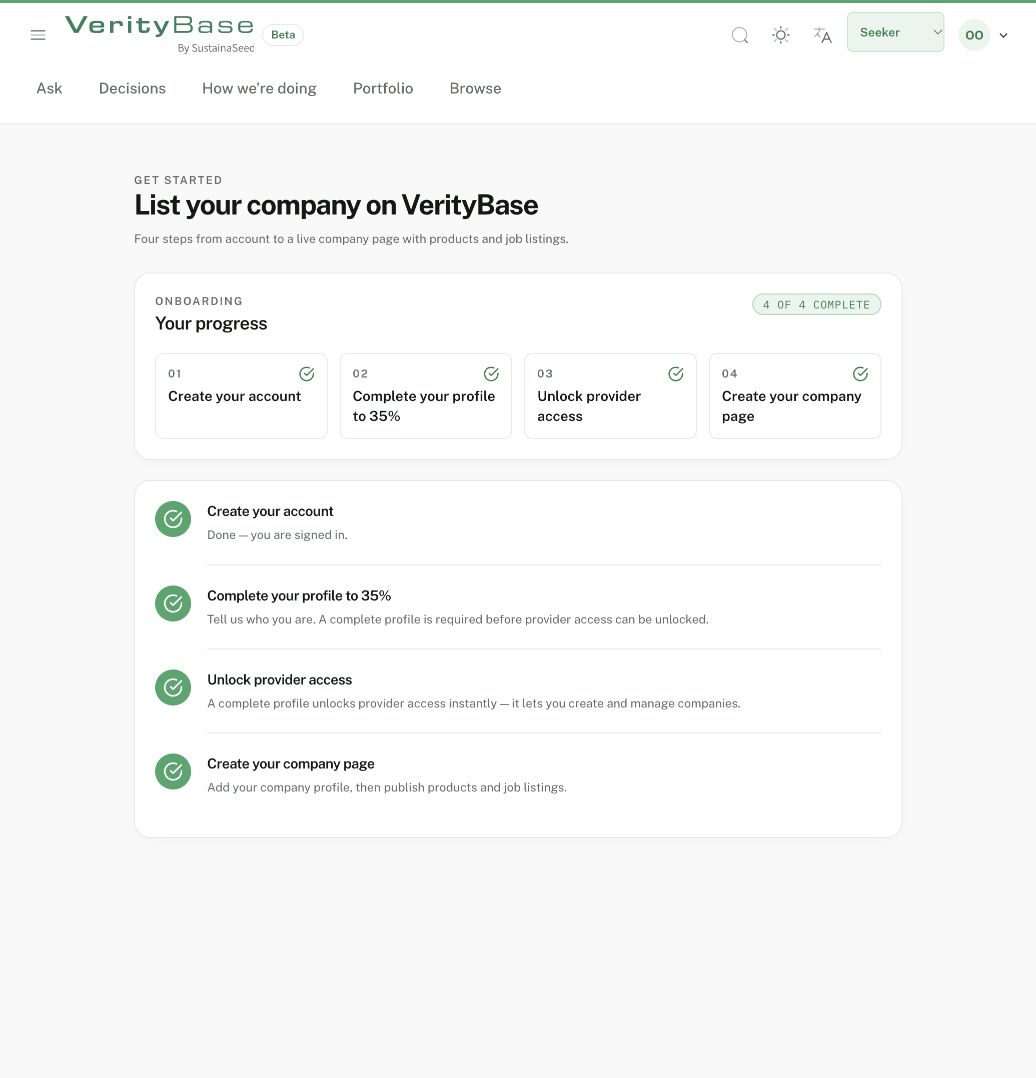
An existing demo owner has all four Provider steps complete; this is seeded history.
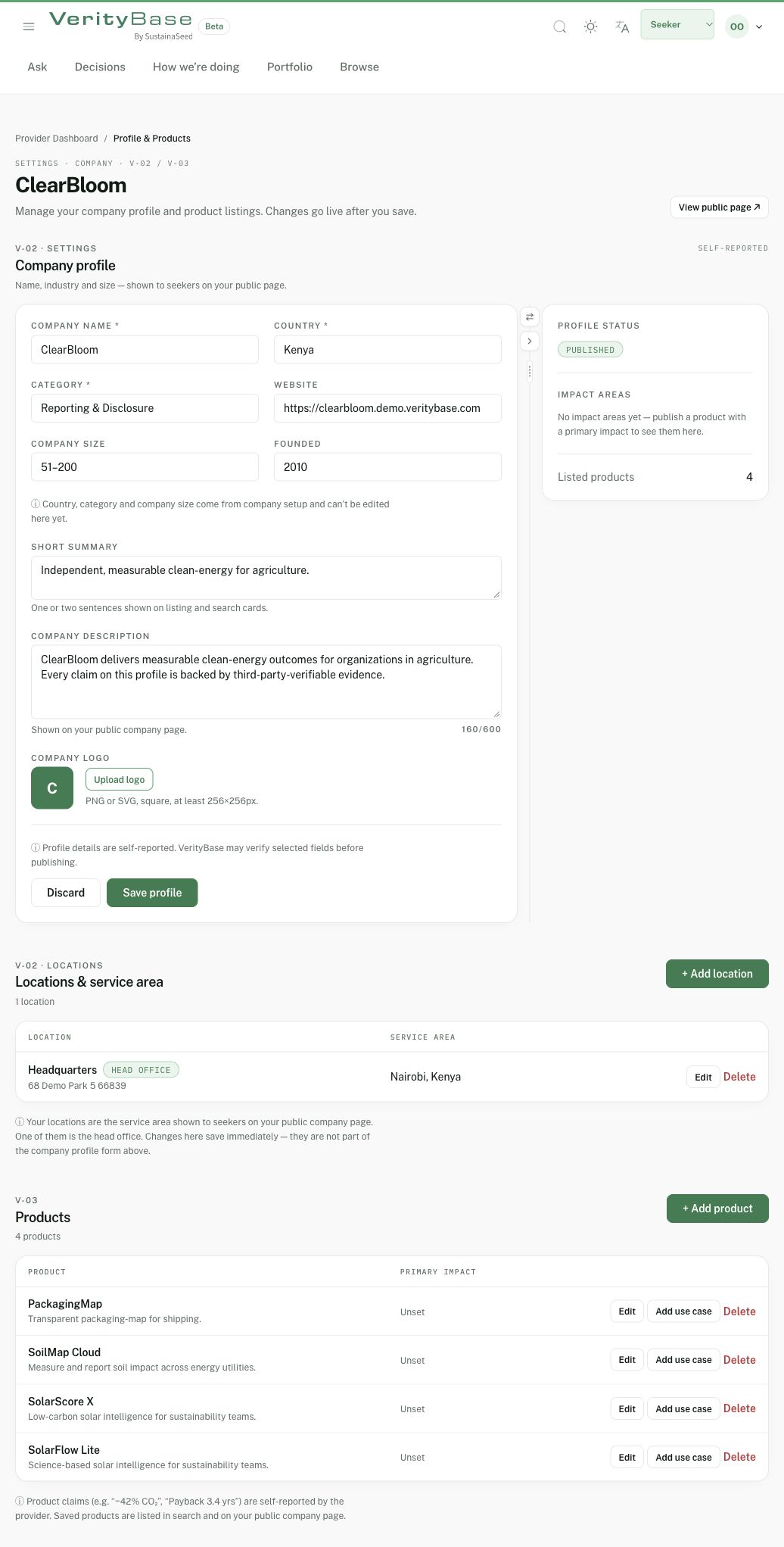
Fictional company editor: public self-reported fields and separate save controls.